
Join the Dari Q community
Every new account requires HOA approval before activation. Ownership and occupancy records are linked to the building and apartment number.
Resident guide and app installation
Step-by-step help for using Dari Q on the website or your phone.
Venue handover and deposit return
Open Handover and deposit record from your booking. Review actual issued quantities, condition and photos; the venue may be empty or partly furnished. Record pre-existing defects rather than assuming a defect-free handover. Initial photos are optional for good condition and required for pre-existing defects or shortages; return-inspection photos are always required.
Add your own photos and observations when needed. Inspection records actual returned quantities and new damage or shortages. The record keeps dates, actors and clarifications without erasing the original.
Reception handles cash and inspection; PM decides any deduction for new items only. Held deposits cannot be paid before the PM decision. After receiving cash, confirm receipt in your account. Send concerns to the PM first and escalate to HOA if unresolved.
Review, dispute and cash receipt
To raise a concern, open your booking record and choose Comment / dispute to PM. Select the item, quantity or locations, write the explanation, attach a photo and send. If unresolved, use Escalate to HOA.
Initial-condition acknowledgment and cash-refund acknowledgment are separate. Review quantities and existing defects before accepting the condition; confirm cash receipt only after receiving the money.
Getting started
Enter the ID, deed or Ejar references and required information accurately. These details remain in the account record; eligible registration evidence copies are removed after approval and verification. Rejected or withdrawn copies are retained for 30 days from the recorded decision. Pending, incomplete or held evidence stays for review. You may choose in-person inspection without providing copies. See the privacy notice for details and backup limitations.
The website and app offer the same services with the same account. Installing adds a Dari Q icon to your phone; no app-store download is needed.
Tenants can apply directly with an Ejar contract, or the owner can submit the application. Contract dates determine residency eligibility after HOA approval.
When your account is created, use the password-setup email, then sign in. Check junk mail if the message is missing. Keep your password and setup link private.
For owners: select the building and full apartment code, such as A101. M means mezzanine and R means roof. Submit a separate application for each apartment from the same account; each requires HOA approval.
For co-ownership: each owner applies with their own account and documents. The HOA reviews co-ownership before approval. Co-owners cannot read each other’s documents. The free booking allowance belongs to the apartment and does not multiply with the number of owners.
Under My units, check approval, apartment details and occupancy dates. Contact the owner or management if your apartment is missing or details are incorrect.
Services depend on your account permissions and active occupancy. For a rented apartment, facility eligibility belongs to the approved tenant during active occupancy.
Residency changes and contract renewal
Owners: open your apartment record and choose Request a change of residency status. Enter the move date and details. Owners do not need a National Address certificate. HOA approval is required on or after the move date; submission alone does not change access.
After an approved move-out, the owner retains their account, notifications and apartment-visit access only. Tenant applications are separate. Former household details are retained without automatic reactivation on return; submit new requests for people living with you.
Tenants: choose Renew rental contract under your unit, enter the new contract dates, attach the official Ejar contract and submit for review. An email reminder is scheduled seven days before the approved contract expires. You can submit the renewal before expiry.
Services remain available until the approved contract expires. After expiry, sign-in remains available to submit a renewal and track the decision; resident services, including visitors and bookings, are restricted until a new contract is approved and active. The HOA decision is emailed, and rejection reasons appear in your account.
Registration and residence documents
An owner who rents out an apartment keeps their account, HOA notifications and entry to visit their apartment, without facility use or venue bookings. Reception sees apartment-visits-only access. Lease expiry does not prove that the owner moved back in; the HOA reviews residency before granting resident entitlement.
Owners need ID and an ownership deed, without a National Address certificate whether resident or renting out. Choose to upload copies for HOA review or show originals to the property manager without providing copies, followed by final HOA approval.
Tenants apply directly with ID, National Address certificate and official Ejar contract, uploaded or verified in person, including start and end dates. The owner need not register first. The HOA checks entitlement before approval. Tenant and household residency access expires with the contract; renewal requires approval.
Every additional household member must actually live in the apartment. Select their relationship/residency type and upload their ID and National Address certificate or show the originals in person without providing copies. This includes live-in drivers and domestic workers. Non-resident relatives and visiting workers use visitor registration.
Documents may be PDF, JPEG or PNG, up to 3 MB each and 20 MB combined. They are supporting evidence for review and do not result in automatic approval.
Add someone living with you
From your approved account, open My units and Request an additional household member under the apartment where you live. Enter the full name, select the relationship/residency type, choose uploaded copies or in-person verification of ID and National Address certificate, and confirm the person actually lives in the apartment and submit to the HOA.
Your existing account stays active during review. The request status appears under the apartment and a decision email is sent. After approval the name is added to the household record and reception’s approved-people list. This does not create a separate login account.
For reception: open Approved people, choose a building or apartment and refresh the list to check the name. It shows names, apartments and the person’s relationship only; ID copies and ownership deeds are not displayed. The visitor list remains separate.
Install on iPhone or iPad
Open the Dari Q address supplied by management in Safari and sign in until the portal appears.
Tap Share (the square with an upward arrow), using the page menu first if needed. Choose Add to Home Screen. If missing, look under Edit Actions.
Name it Dari Q, enable Open as Web App if offered, then tap Add.
Open the Dari Q icon from your Home Screen. Sign in again if asked, then choose your service.
Install on Android
Open Dari Q in Chrome and sign in to the portal.
Tap Install Dari Q if offered. Otherwise open Chrome’s three-dot menu, choose Install and create shortcut, then Install. Depending on the browser version, the option may be called Install app or Add to Home screen.
Confirm installation, open the Dari Q icon, and sign in with your website account if asked.
Book the hall or lounge
Open Bookings, select the venue, apartment and month, then Show availability and choose an available day. Online reservations cover the event hall, lounge and outdoor area.
Review the displayed fee, deposit, handover/return times and cancellation rules before accepting and submitting. For the hall and lounge, Eid periods and December 31 always cost SAR 500 without using the free allowance; see the special-period rules below. All times are Saudi time.
If a fee is due, transfer it using the details shown inside your booking and upload the receipt by the displayed deadline. Receipts may be PDF, JPEG or PNG up to 3 MB.
Uploading a receipt sends it for review; it does not confirm the booking. The property manager verifies receipt of the transfer. Check My bookings and wait for Confirmed before relying on the reservation.
Once confirmed, open Event guest invitation in My bookings, enter the event name and expected guest count, set arrival and departure within the booking period in Saudi time and save. Share the same invitation link or QR with all guests without registering each guest separately. Editing invitation details invalidates the old invitation; share the new one.
Reception uses the same scanner to see the event venue, host and window and direct guests to that venue only. Repeat entry is allowed during the window; cancellation or expiry invalidates the invitation. A shared invitation does not identify each guest. Hall/lounge bookings do not include outdoor seating. Outdoor reservations cover Area 1 and Area 2 only if selected. Other facilities and equipment or decorations outside the booked boundary are prohibited.
To cancel, open the booking, choose Cancel booking, enter a reason and submit. Check the status and any refund due; handling depends on the displayed rules and timing. Transfers, cash deposits and refunds happen outside the app and are recorded by management.
For hall and lounge bookings: If no damage is found, the deposit can be returned in cash immediately after the key is received and inspection is completed. If damage is found, the cash balance is returned after required deductions within one week of key return. Management records each deduction and its reason.
For hall and lounge bookings: Tenants cannot book the same venue on consecutive days. Booking the hall one day and the lounge the next is permitted.
For hall and lounge bookings: The event and all event-related equipment, carts, games, installations and activities must remain inside the booked venue. No outdoor space or other area may be used for the event. Popcorn carts, inflatables and bouncy castles are examples; the restriction applies to all other event items and activities as well. Event guests are not permitted to use the outdoor seating. The person making the booking must inform their guests of this rule and ensure they comply.
For hall and lounge bookings: Event decorations are allowed only inside the booked venue. Decorations outside it or in any other area are prohibited.
Register visitors
Open Visitors and select the apartment, visitor name and expected arrival/departure times. Select the arrival method and enter the plate when arriving by vehicle.
Tap Register visit and check that it appears under My registered visits. Register each visitor separately before arrival.
Open View and share QR pass beside the visit, then share its link with the visitor or save the QR image. The visitor needs no account. Re-entry is allowed during the Saudi-time visit window; cancellation, expiry or loss of host eligibility invalidates the pass.
For reception: sign in with the reception account and open Scan visitor pass from the visitor list. Allow the camera when prompted and point it at the code, or paste the pass link. Check the live online result and match the name and apartment; do not rely on a saved image or visitor page alone. Camera images are not uploaded.
Reception uses the day’s list to match the visitor, apartment, time and vehicle details. Registration and scanning do not automatically open a gate or record actual arrival/departure.
If details change, cancel the visit and register it again. Cancellation removes it from reception’s list.
Report and follow up on a problem
Open Reports for a common-area problem. Choose your apartment, specify the location and describe the issue clearly.
You may attach up to three JPEG or PNG photos, up to 2 MB each. Avoid unrelated people or documents in photos. Then tap Submit report.
The property manager is notified and handles the report. Open My reports and replies to read the response and status; email notices are brief, with details in the portal.
The PM reviews scope; private-apartment issues are closed as outside management scope with an explanation. Common-area issues are handled by the PM or assigned to O&M, who submits completion photos and a written explanation for PM verification and closure. You receive update notifications and can reopen a closed ticket with a reason.
If the problem remains unresolved, use the escalation option when available and explain why. Escalation notifies the HOA.
Reports are not an emergency channel and do not promise an immediate response. For an urgent danger, contact security or the appropriate emergency service directly.
Announcement notifications and email
When management enables announcement delivery, approved owners (including nonresident owners) and approved active tenants receive a short email and a link to Announcements. Check junk mail and read the announcement inside your account.
Open the installed app and sign in. Under Dari Q notifications tap Enable notifications, then Allow. Repeat on each device. iPhone requires iOS 16.4+ and the Home Screen app; on Android use Chrome.
If you denied permission, allow Dari Q notifications in app or browser site settings and reopen the app. If your device does not support push, use email and the Announcements page.
Tap a notification to open Announcements; you may need to sign in. Lock-screen notices contain no personal details. Connectivity and phone settings can delay notifications; this is not an emergency channel.
Tap Disable notifications to stop this device. Signing out or session expiry stops delivery for that session; enable notifications again after signing back in if desired. Email is independent of phone notification permission.
Announcements and help
Open Announcements when it appears in the menu to read published HOA notices. Switch Arabic/English using the language link at the top.
A preview notice or disabled submit button can mean the service is not open or your account/occupancy needs approval. Check your status with management.
An internet connection is needed to view records and save requests. If the connection drops during submission, reopen the service and check whether the request exists before sending again.
If you forget your password, use the reset link on the sign-in page. Check junk mail or contact management if the message is missing. Your website password may differ from your email password.
Property manager for bookings, transfers and routine reports: pm@dari-q.com. Reception for visitor enquiries: reception@dari-q.com. HOA for account approvals and escalation: hoa@dari-q.com. Submit requests through portal forms rather than emailing sensitive documents.
Website & app technical support
Open Website & app technical support, choose the affected service, and describe the steps and error message. Optionally add device/browser details and one screenshot after hiding personal information.
Tap Submit support request. Find its reference under My requests and replies. Return to this page to follow its status and replies. You can add a reply; replying to a resolved request reopens it.
Request alerts go to techsupport@dari-q.com, and you receive email when the request is received or updated. Portal replies are saved in the request history. Email replies are not automatically added to that history.
If you cannot sign in, use the support link on the sign-in page or email techsupport@dari-q.com. Do not send passwords, verification codes, IDs or private documents.
This support is for technical errors. Use Resident reports for maintenance and Bookings for reservations and transfers. This is not an emergency channel.
Sign-in, language and account security
Open dari-q.com. Choose Owner or tenant login for resident services, Staff website login for HOA, PM, reception or O&M, and Staff email login for Microsoft 365 in a separate page. Email and website accounts are separate.
Choose Arabic or English. Portal interface text follows your selection; user-written content is not automatically translated. PDF manuals remain bilingual. On a phone, expand Menu and services to navigate.
Use Set or reset website password if needed and check Spam. Never share your password, verification code or recovery codes. If the browser is signed into the wrong account, sign out and use the correct account.
Under Account security — two-factor authentication, residents may choose an authenticator app or email codes and keep recovery codes securely. Staff providers are authenticator apps and recovery codes, not email, SMS or WhatsApp. PM/reception setup and universal staff enforcement remain deferred for training; do not assume every account has two-factor protection.
The account holder personally sets up their authenticator and stores recovery codes. The site may request another authenticator code before security changes. Contact technical support if locked out; do not send your codes.
Registration and in-person verification
Complete all required information, including identity number, the owner’s deed number or tenant’s Ejar reference, building and unit. These structured details remain in the account after evidence copies are removed. Check them before submitting.
No owner needs a National Address certificate, whether resident or renting out. Tenants and additional household residents need ID and National Address proof; tenants also need the official Ejar contract and its dates. Added residents must actually live there, with relationship or residency type, such as a live-in driver or domestic worker.
Choose document uploads for direct HOA review, or in-person verification: show originals to the PM without supplying copies. In-person applications first go to PM to verify information and entitlement, then to HOA for final approval. PM verification does not activate the account.
After submission, follow the status and email. Approval and login instructions are emailed; rejection includes its reason. Follow any requested correction or contact HOA. Check for an existing request before submitting again.
Your documents and privacy requests
HOA verifies evidence against saved details before removing eligible copies after approval. Pending, incomplete or held copies remain for review. Rejected or withdrawn copies become eligible after 30 days from the recorded decision. A confirmation is emailed after successful removal; approval alone is not proof of deletion.
Removal from the current portal does not erase account information, bookings or audit history, and does not establish deletion of hosting backups or previous downloads. Read the privacy notice; no system guarantees that a leak cannot occur.
Restricted viewing and watermarking discourage ordinary copying but cannot prevent screenshots or copying with another device. Do not copy or share resident evidence outside authorized review procedures.
Open Privacy and personal data to request access/a copy, correction, erasure, withdrawal of consent where applicable, or to raise a question. Explain without attaching an ID and keep the P- reference. HOA verifies identity and reviews the request; submission does not automatically erase anything. If unable to sign in, contact hoa@dari-q.com.
Apple installation help · Chrome installation help
Questions and help
Hall and lounge bookings at Eid and New Year
- Eid al-Fitr and Eid al-Adha: days 1–7 inclusive, plus any adjoining Friday–Saturday weekend before or after. The whole period opens for booking 14 days before Eid day 1 at 00:00 Saudi time. All bookings cost SAR 500 and do not use the free allowance.
- December 31 always costs SAR 500 and opens on December 18 at 00:00 Saudi time, 14 days before January 1. The cash deposit and 24-hour pre-handover booking cutoff still apply.
- Eid dates use Umm al-Qura; the property manager corrects them when the announced date differs. The period and opening date then change for new bookings. Existing reservations keep their booked dates and agreed fees, with affected bookings flagged for review.
How-to videos
List apartments and shops for rent or sale
- Sign in with an approved owner account, open My property listings, and select the apartment or shop and rent or sale.
- Add the description, price, area, rooms, availability and authorized photos. Review the commission terms and submit to the property manager.
- The listing remains private until PM review and approval. Edits require another review; you can withdraw the listing.
- Interested visitors browse public listings and send enquiries or viewing requests. The PM coordinates contact; submission does not confirm an appointment or grant building access.
The owner pays a 2.5% commission on completion: based on first-year rent or the final sale price. Do not pay the purchase price or rent through this form. The PM reviews agreement, invoicing and collection terms before completion.
Browse apartments and shops for rent and saleShop-owner registration and access restrictions
Shop owners may register for ownership and account approval only. Shop ownership grants no access to parking, venues, gyms, pools, outdoor areas or any residential facilities.
In the owner form, choose Shops and shop number 1 to 6, and provide ID and ownership deed by uploading copies or showing originals in person without copies. HOA approval is required. A shop cannot be used to add residents or issue residential visitor passes.
Register the shop tenant
An owner who rents out a shop must submit the tenant application from the approved shop record. Choose individual or company, provide the name, contact details and lease dates, and attach ID and the tenancy contract. For a company, provide its authorized representative’s name, ID and contact details. The HOA reviews the application; registration grants no residential facility or parking rights.
List a shop for rent or sale
An approved shop owner can submit a listing under My property listings. It is clearly identified as a commercial shop and published after PM review, under the same commission terms: 2.5% of first-year rent or final sale price on completion. Listing or completing the transaction grants no residential facility or parking rights.
Outdoor seating reservations
Only the red-outlined areas are reservable. Starbucks marks north (left on the plan). Area 2 has no stated measurement on this drawing.
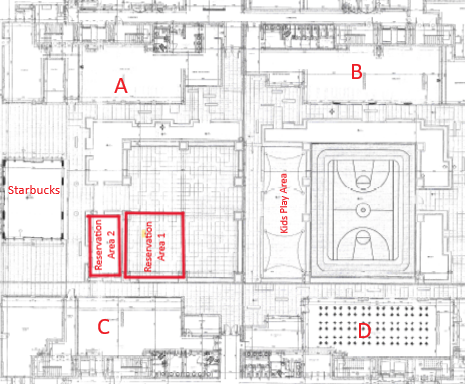
- Area 1 is the main red-outlined space on the plan (approximately 49 m²). Adjacent Area 2, toward Starbucks to the north, is optional at no extra fee or deposit and cannot be booked independently. The reservation does not cover all outdoor seating.
- One reservation per date, from 12 noon until midnight, Saudi time. Quiet hours begin at 8 PM; guests may stay, but no loud noises of any kind are permitted. Do not disturb residents at any time.
- No apartment has a free outdoor booking. The first outdoor booking per apartment per Gregorian year costs SAR 500; later bookings cost SAR 1,000. This count is separate from the hall and lounge and uses the event year. Cancelled, expired and rejected reservations are excluded; existing reservations keep their agreed fees.
- Book no more than 30 days ahead; booking closes 24 hours before the start. Eid and New Year opening restrictions also apply; outdoor fees remain SAR 500 or SAR 1,000 according to the booking count.
- Upload booking-fee transfer evidence within 24 hours. The property manager must verify receipt before confirmation. A refundable SAR 3,000 cash deposit is required before using the area and recorded by staff at handover.
- Cancellation at least 48 hours before the start makes the full paid venue fee refundable after bank verification. Management reviews later requests. After return and inspection, the cash deposit can be refunded immediately if there is no damage; if damage is found, the balance after deductions is returned within one week with reasons recorded.
- HOA-provided seating is limited to capacity for 20 people; sofas and shared seats count by person capacity, not furniture pieces. The organizer supplies additional chairs, all within the reserved area. This seating provision does not authorize an unlimited guest count.
- All toys, decorations, carts, equipment and activities must stay entirely within the booked boundary without blocking walkways or entrances. The booking does not grant event use of the sports court, children’s play area, other facilities or other seating.
- Clean the area immediately after use. Property damage and unsafe activities are prohibited. Ordinary day-to-day use of up to 10 seating places requires no booking, remains subject to general rules, and gives no right to reserve space or interfere with an existing reservation.
- Tenants cannot book the outdoor venue on consecutive days. Facility eligibility restrictions still apply; shops and nonresident owners of rented apartments are not entitled to book.
- The HOA may decline a reservation. Violations may lead to loss of future booking privileges or fines according to an HOA decision; the website does not impose fines automatically.
Resident guide and app installation
Add Dari Q to your phone
iPhone / iPad: Open this website in Safari, tap Share → Add to Home Screen, and select Open as Web App if shown.
Android: Open this website in Chrome, then choose Install app or Add to Home screen from the menu.
Sign in with your Dari Q website account. An internet connection is required for bookings, visitor lists and private records.